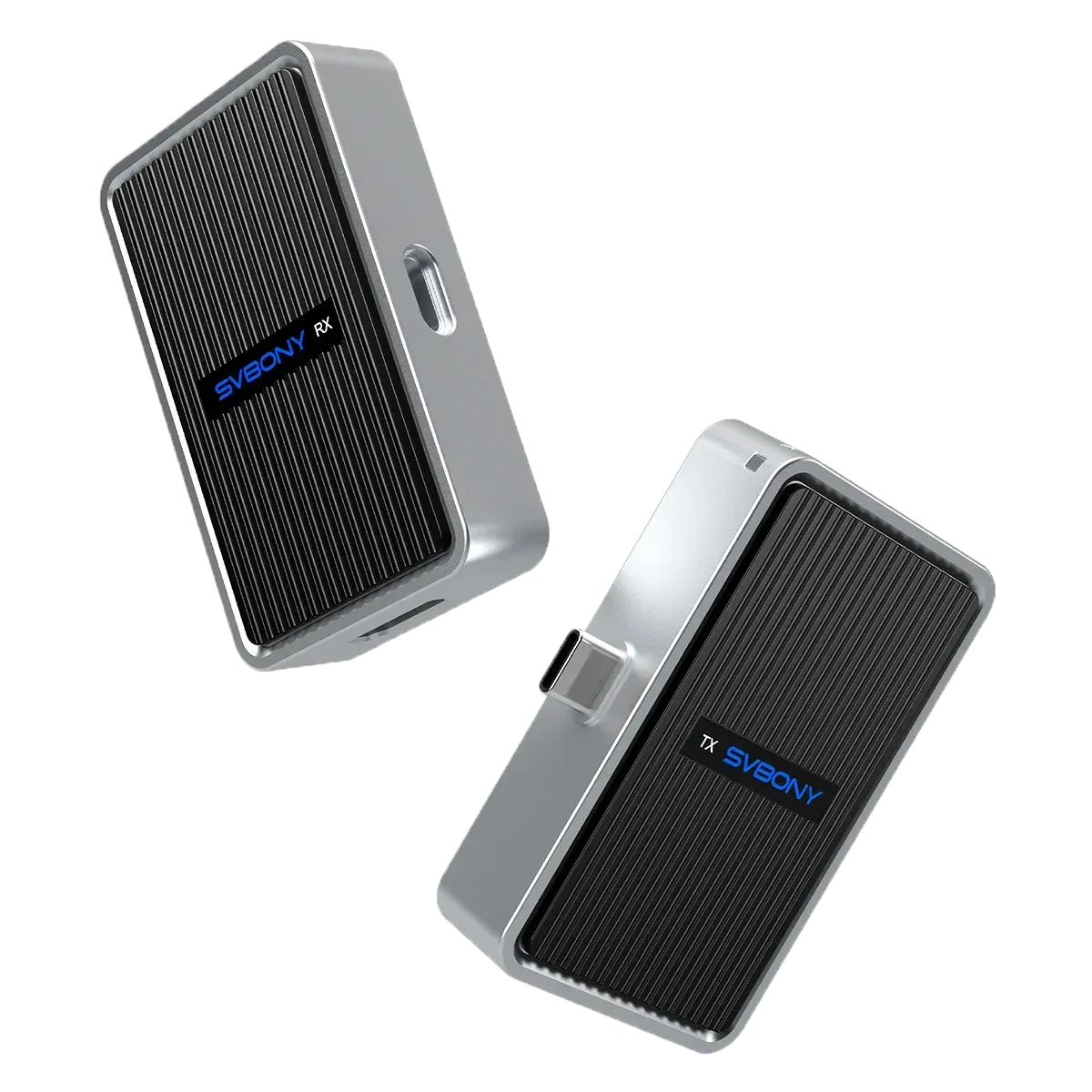
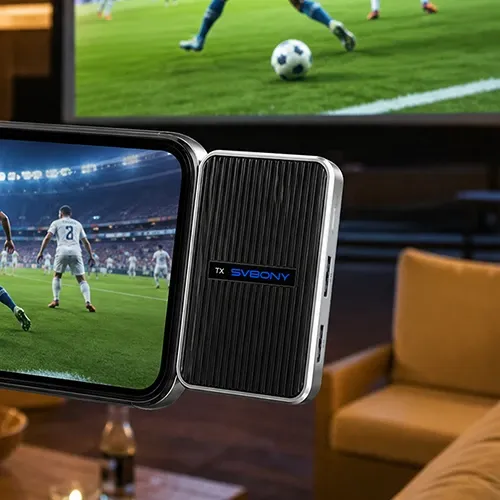
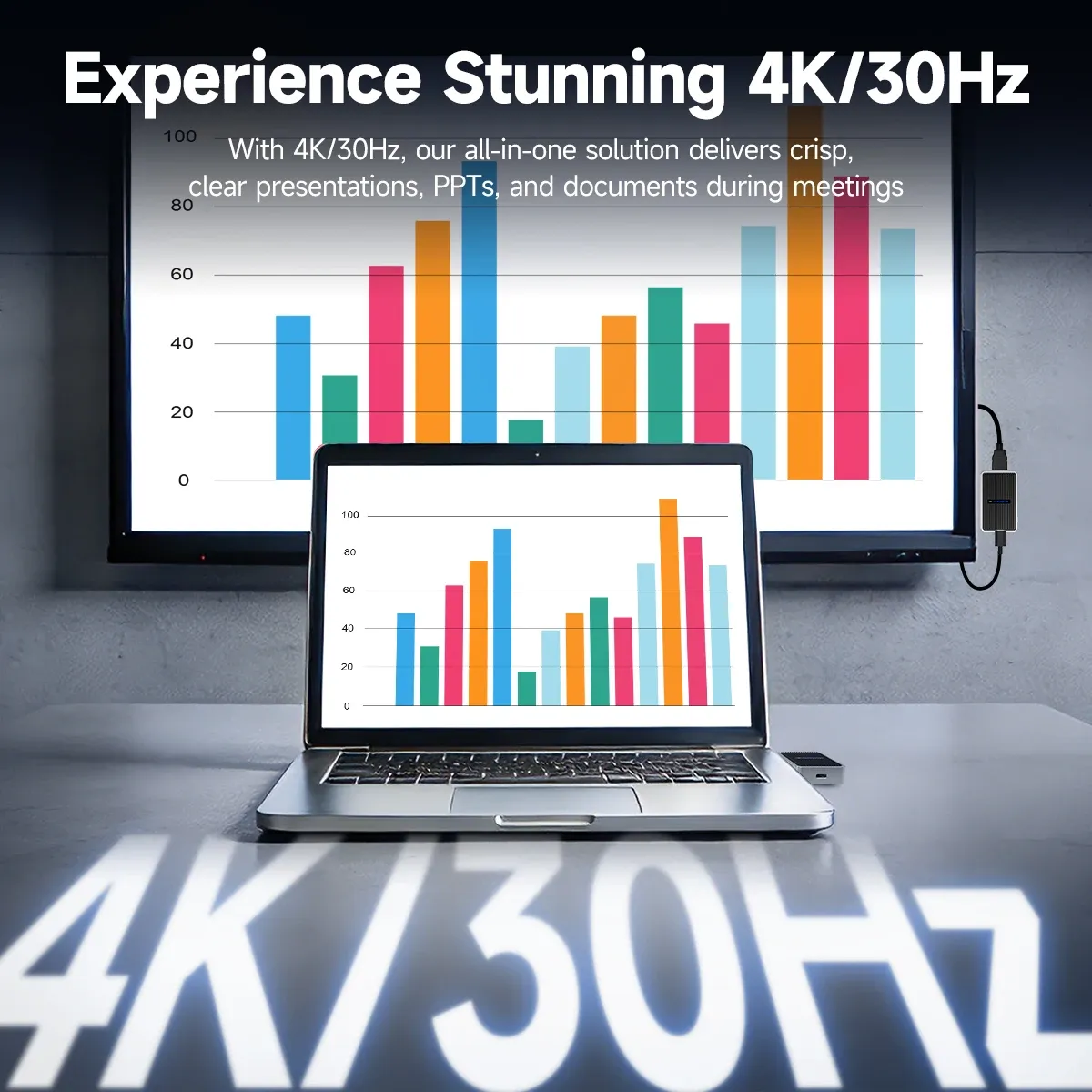
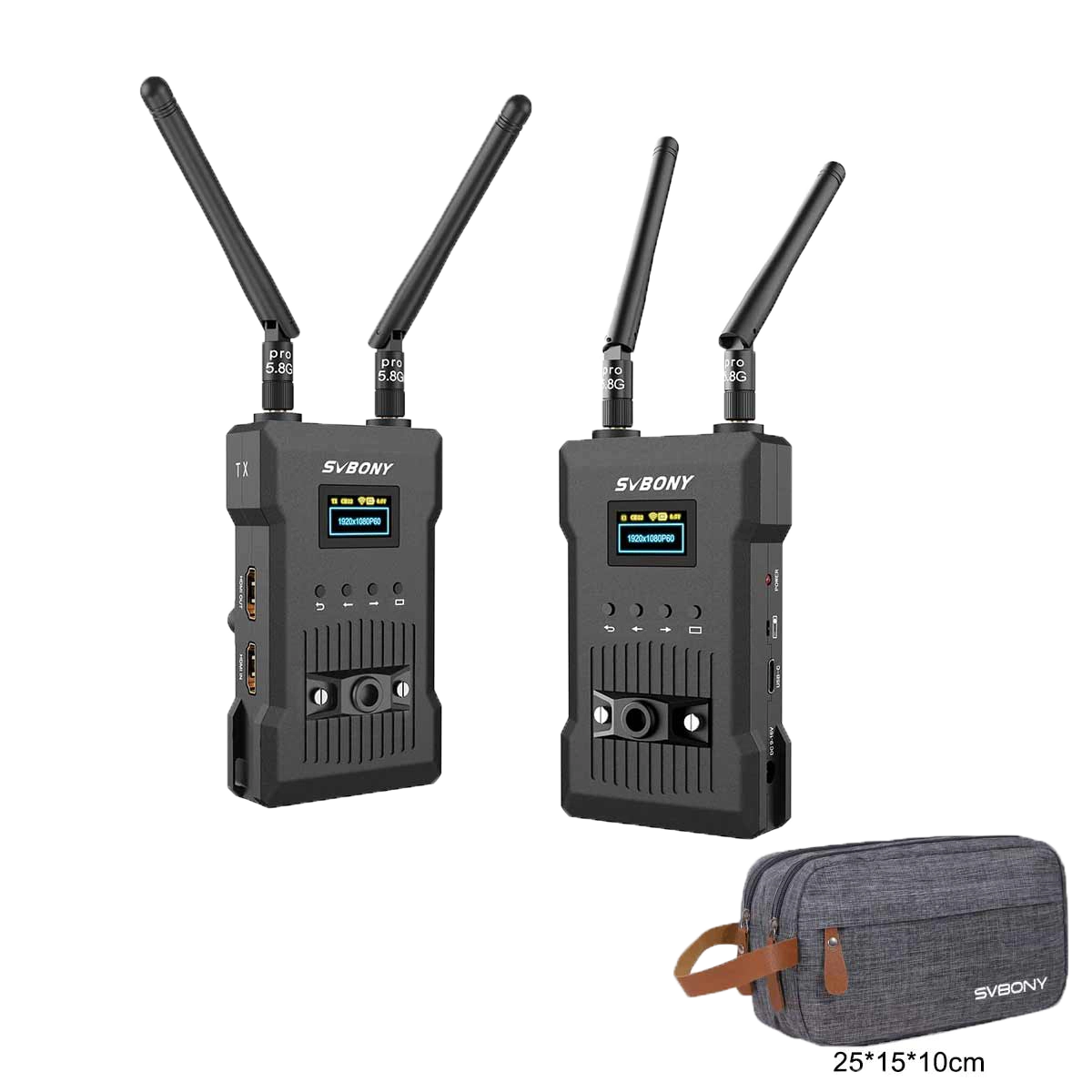
4K Wireless HDMI Transmitter & Receiver | SVBONY TransAir4
Write a reviewKey Features

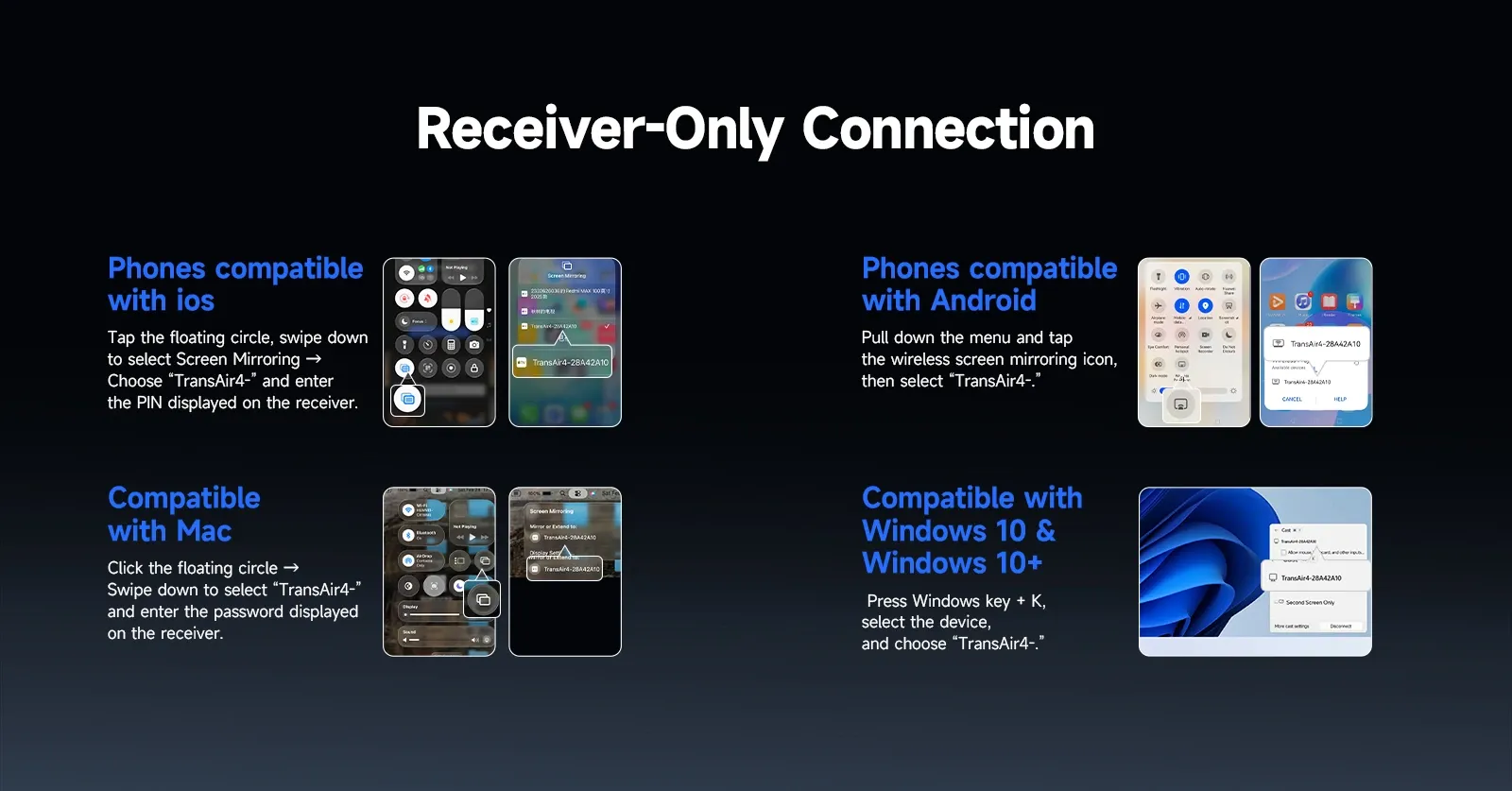


Customer Reviews
All Reviews
Loading...
Q1: What should I do if the transmitter and receiver cannot connect?
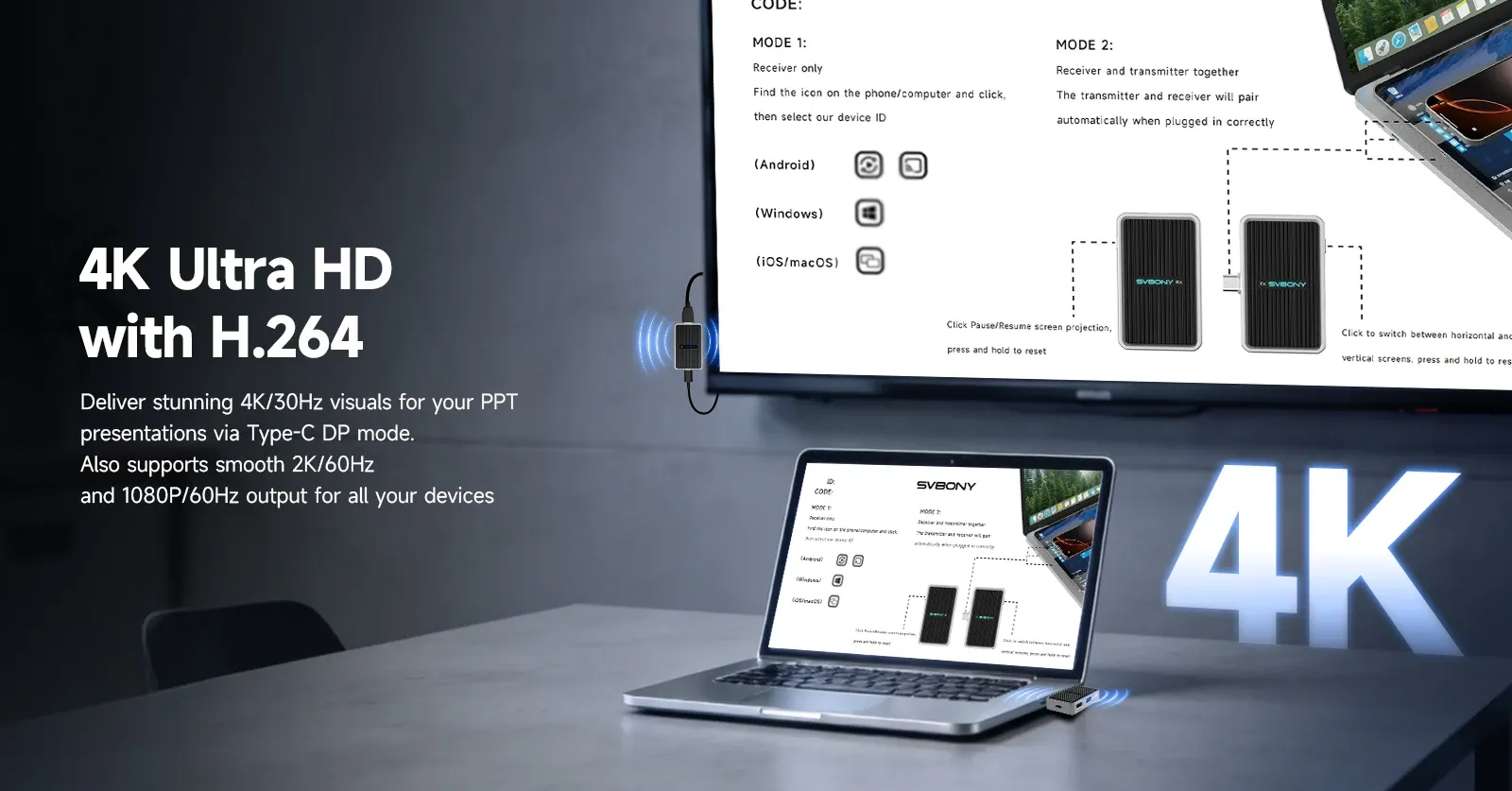
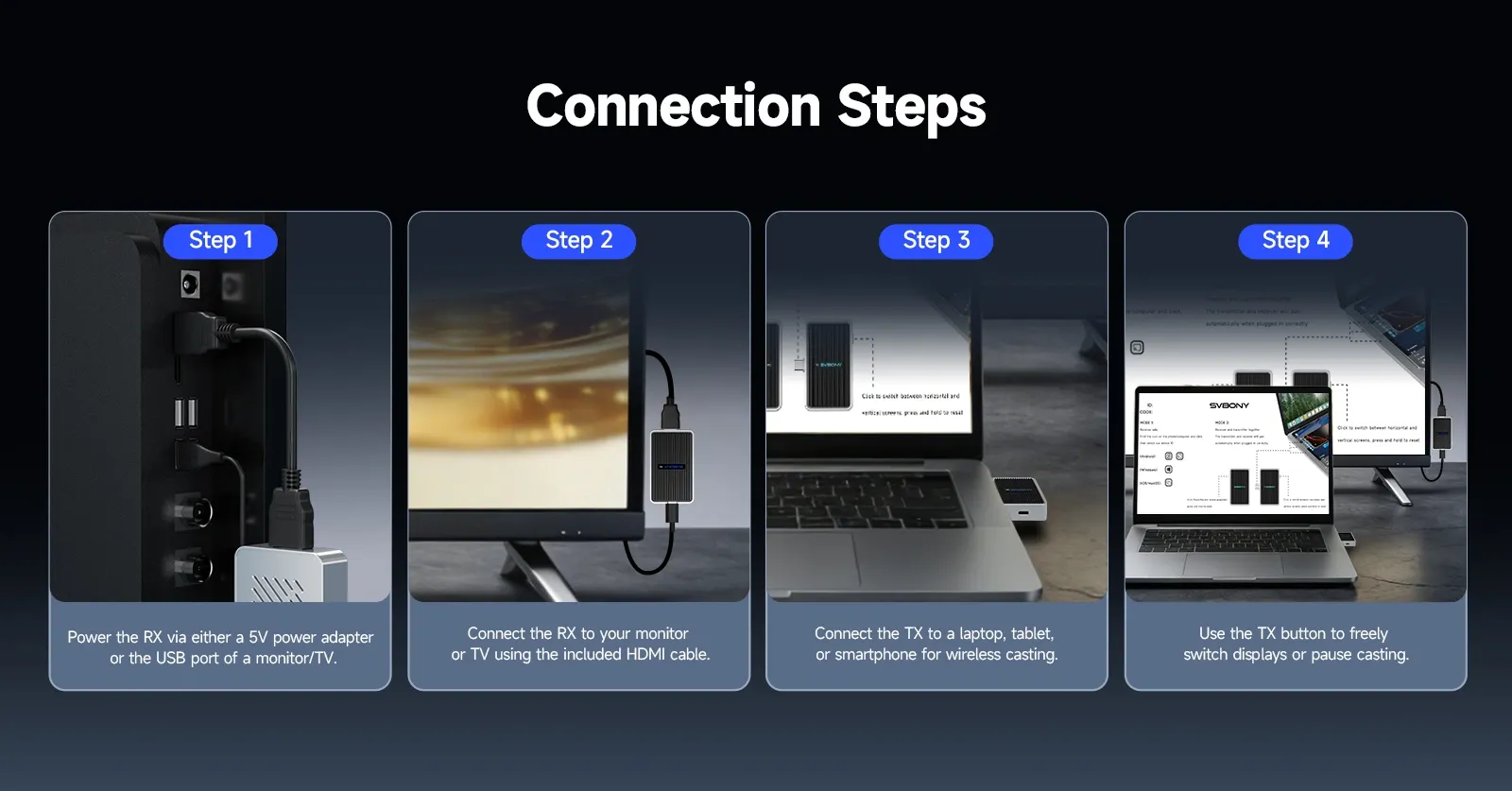
A1: Press and hold the receiver button for 5 seconds (or 10+ seconds to reset) until the screen shows a re-pairing prompt. Then press and hold the transmitter button for 5 seconds until its light blinks. Wait for auto-pairing.
Q2: No display on the screen after connecting the device.
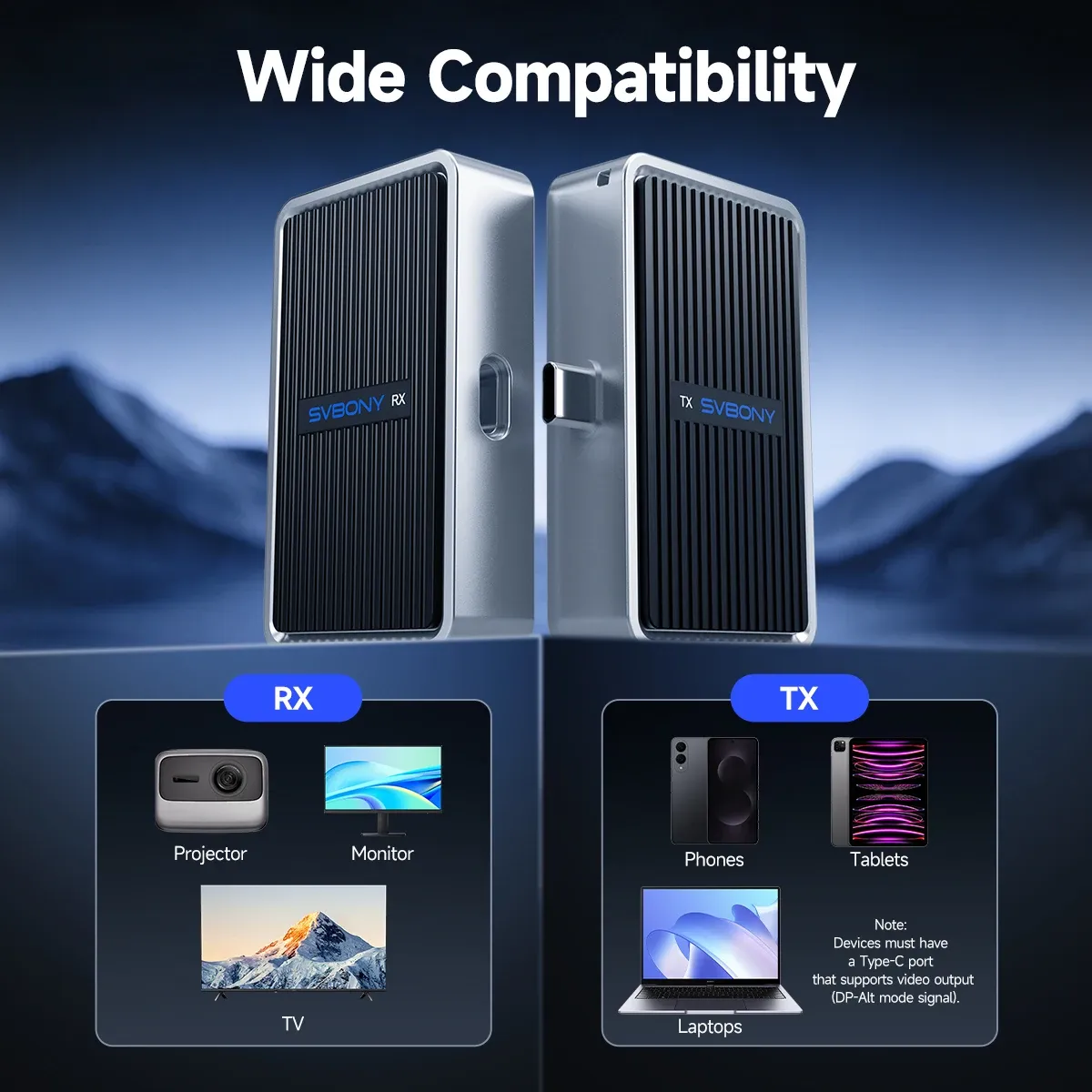
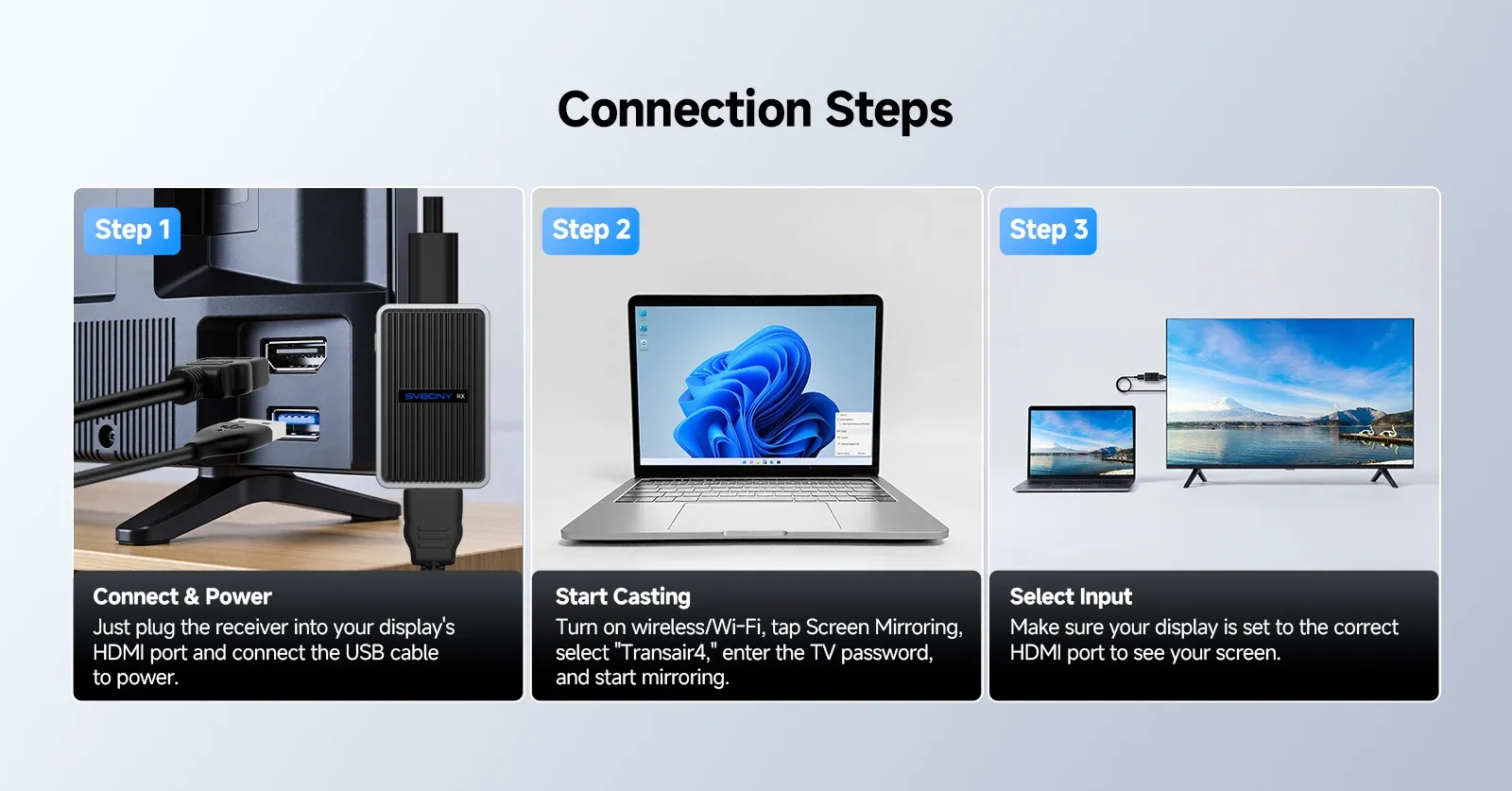
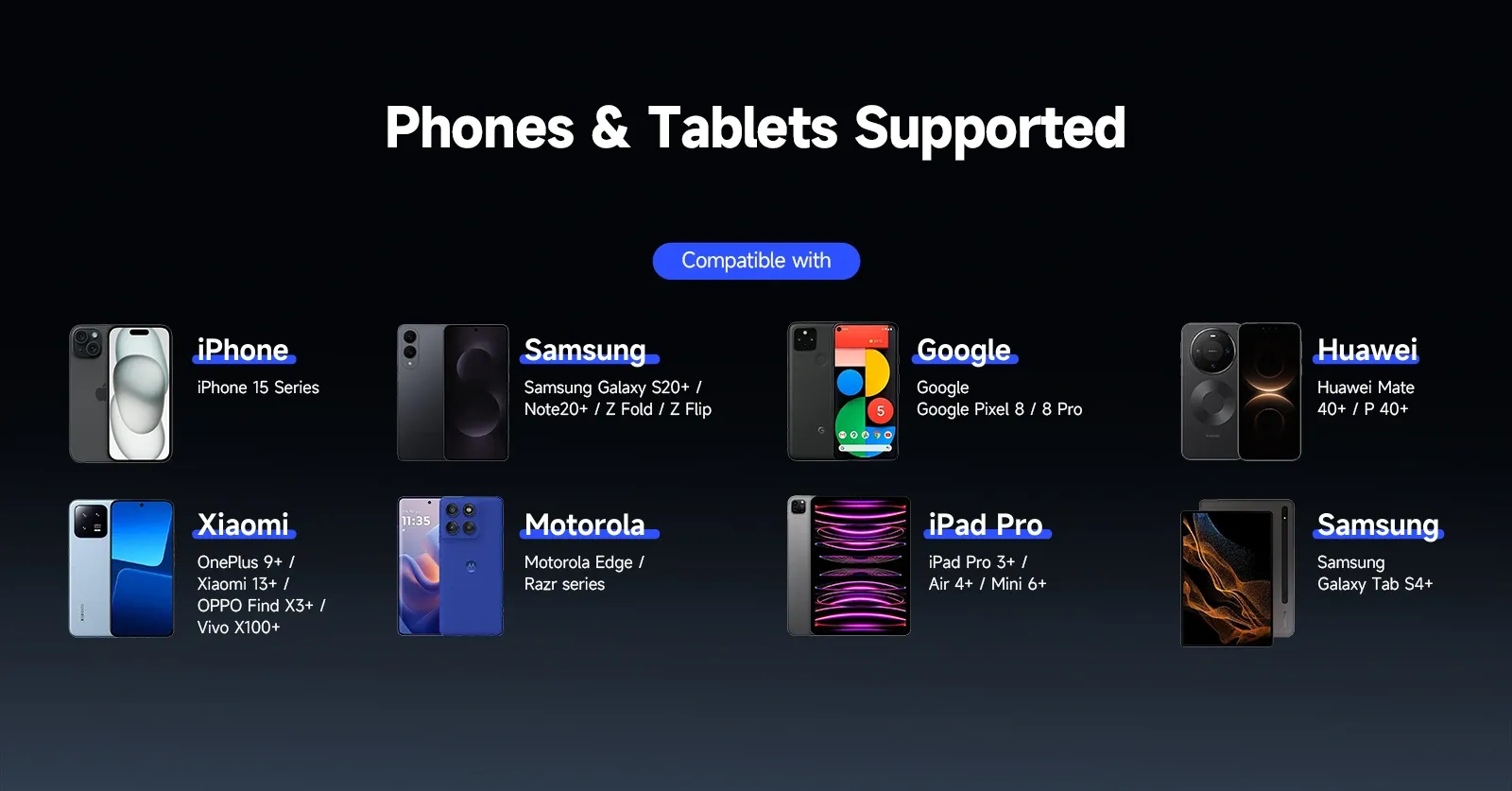
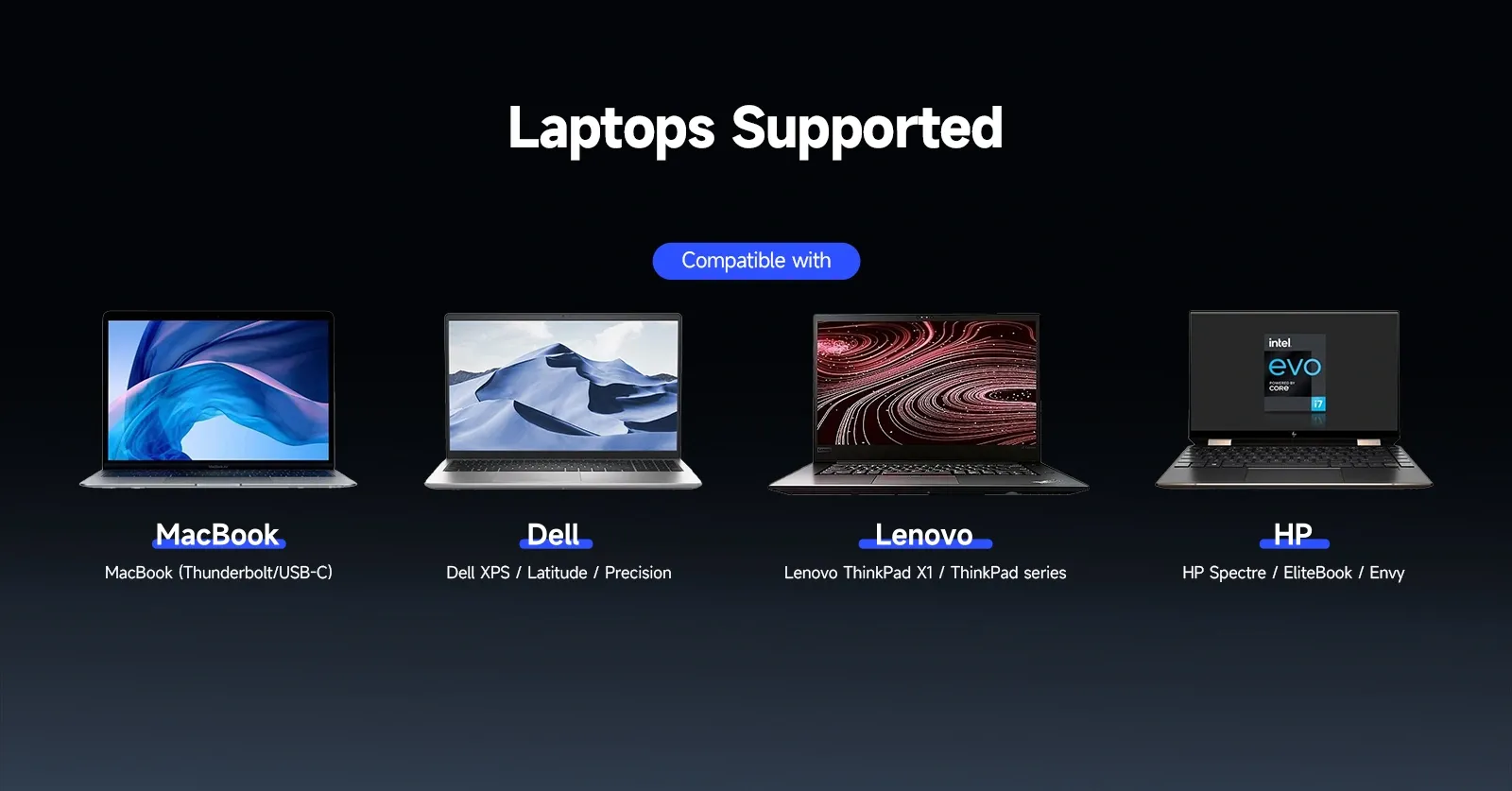
A2: Ensure receiver is powered on (LED on), connected via HDMI, and set to correct input. Try another HDMI port. Confirm source device's USB-C supports DP-Alt mode. See compatible models below.
Q3: Why does the transmitter device screen turn off, or why is the receiver screen different?
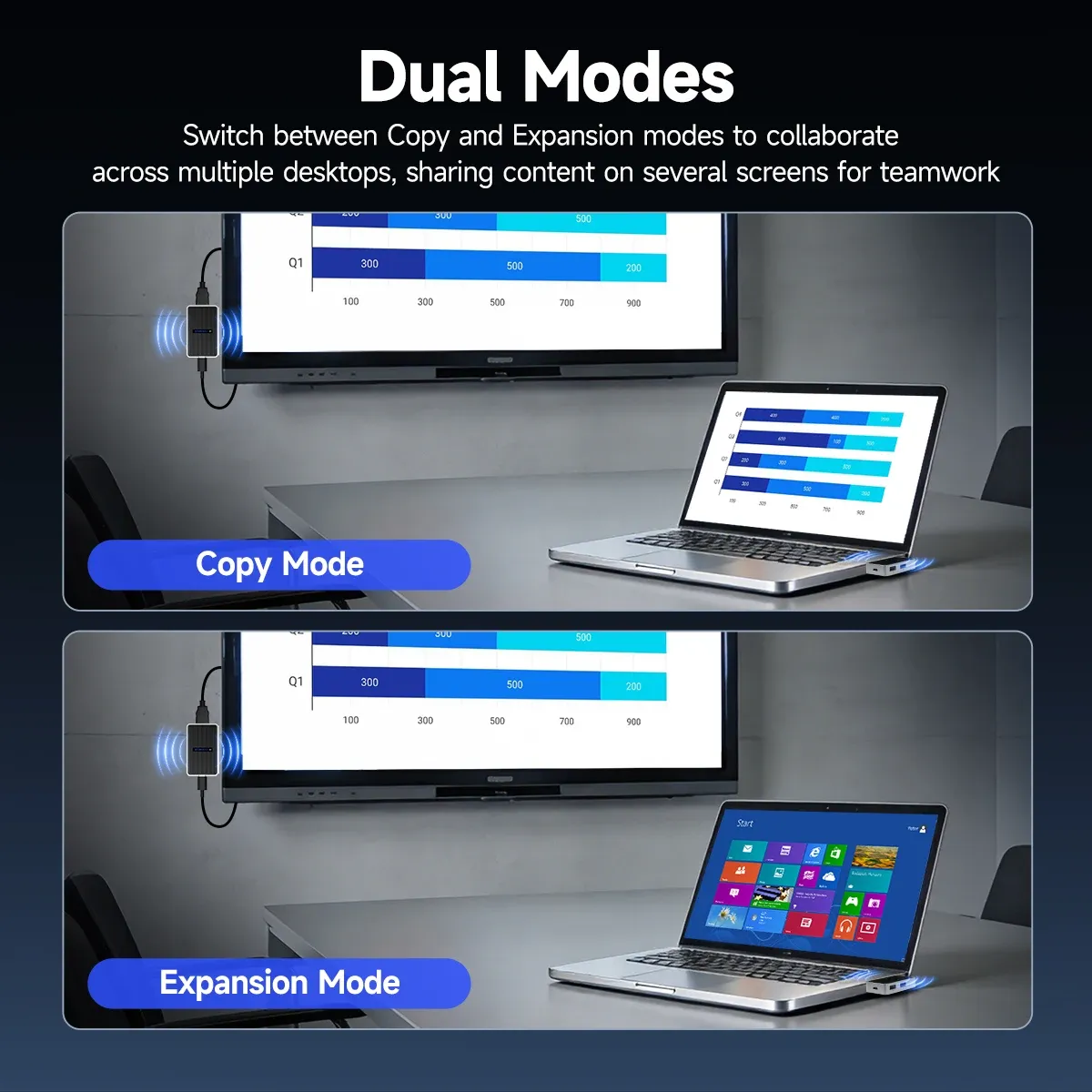
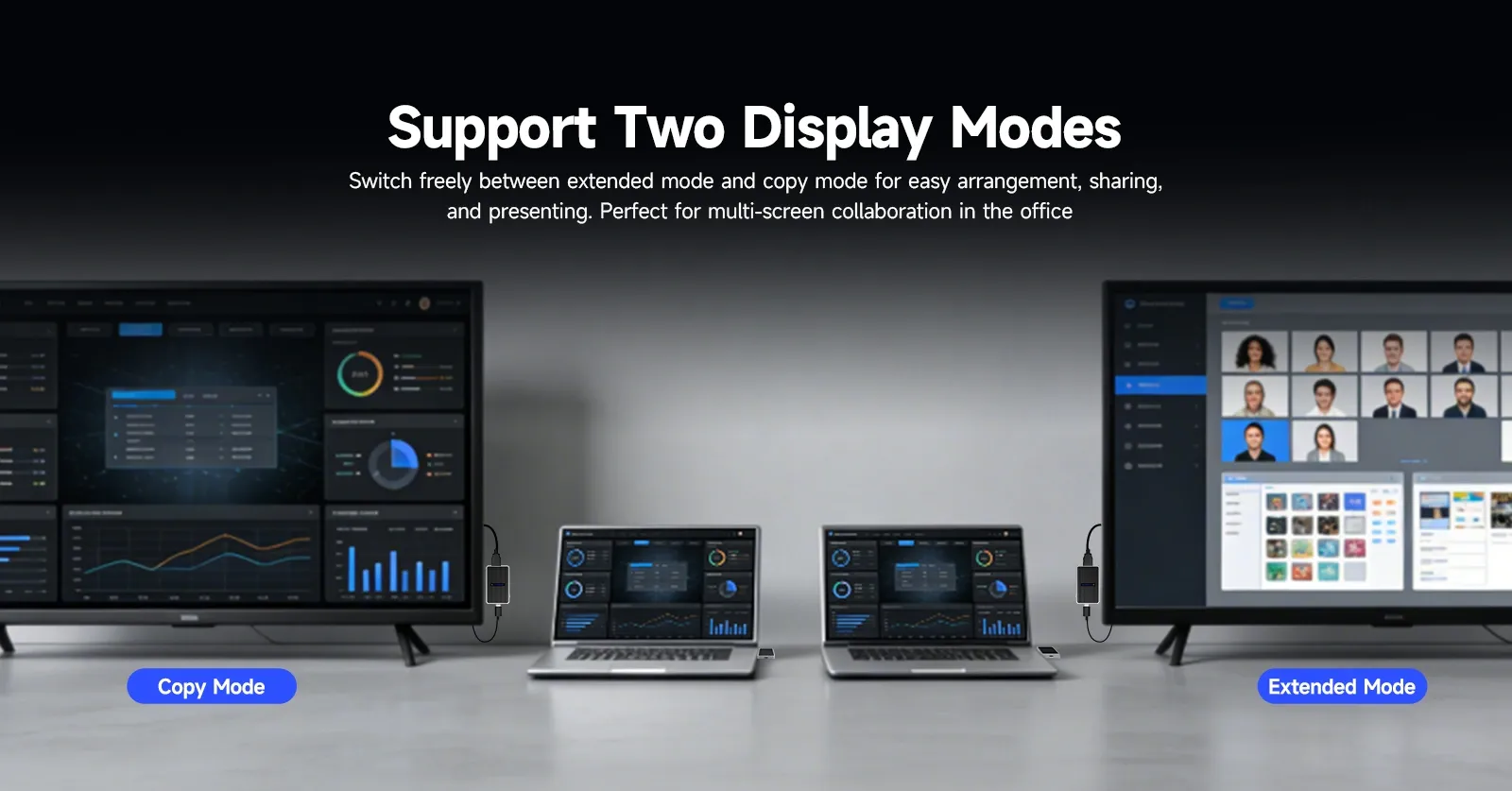
A3: Your device supports two projection modes:
Mirror Mode: Shows the same screen on both displays.
Extend Mode: Uses the receiver as a second screen.
Check and switch the projection mode in your device settings.
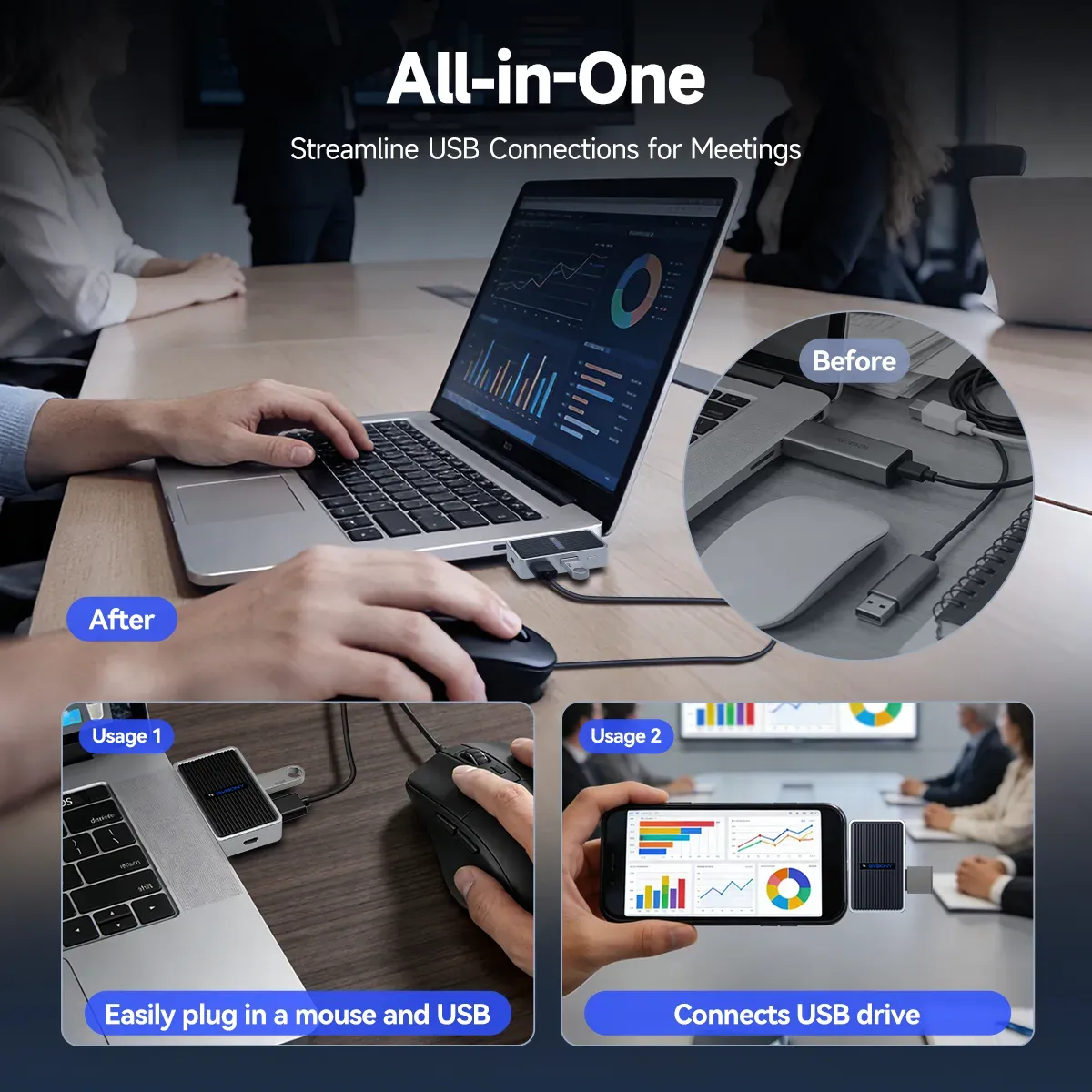
Q4: What devices can be connected to the transmitter’s USB port, and why is data transfer slow?
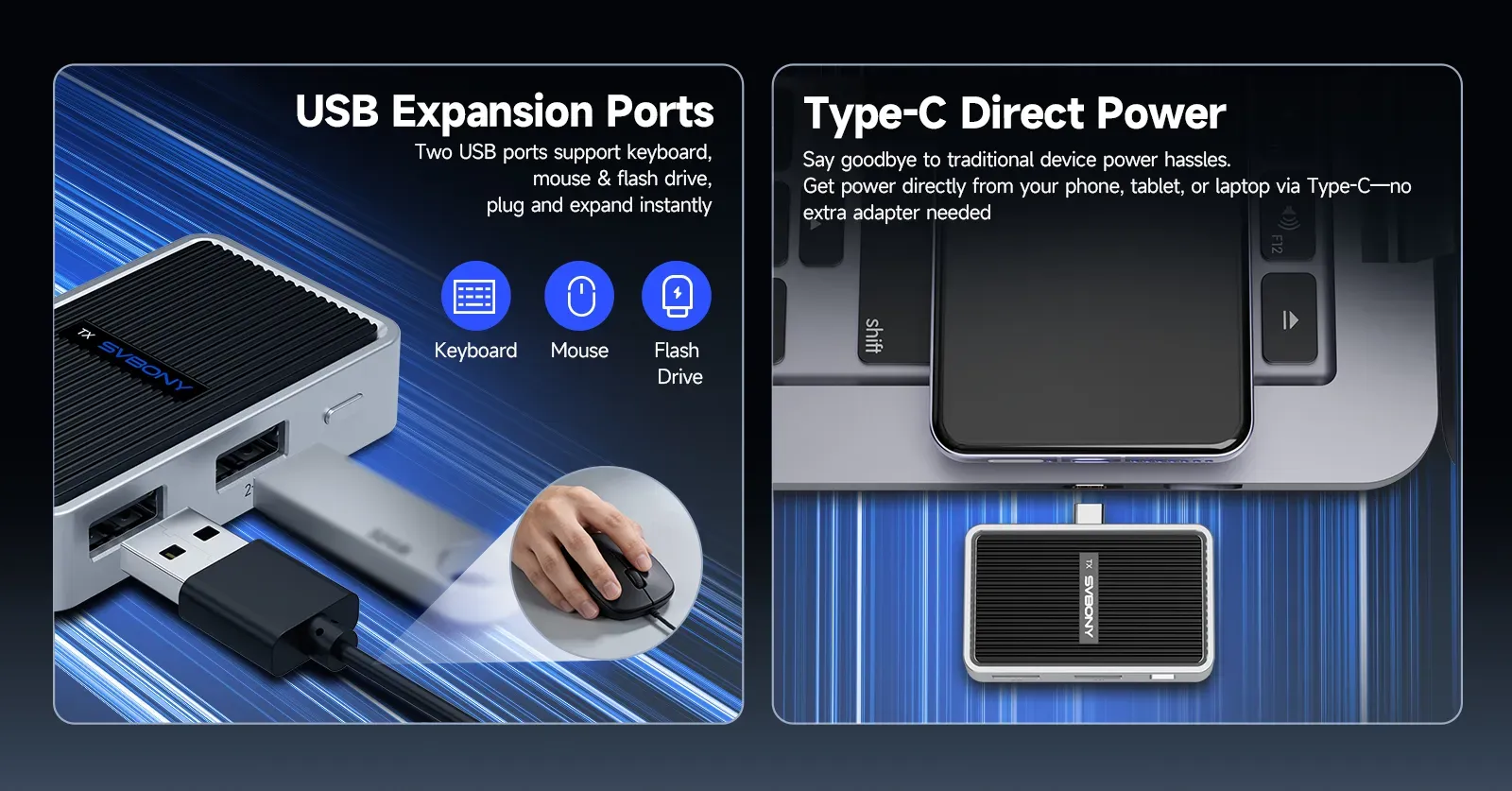
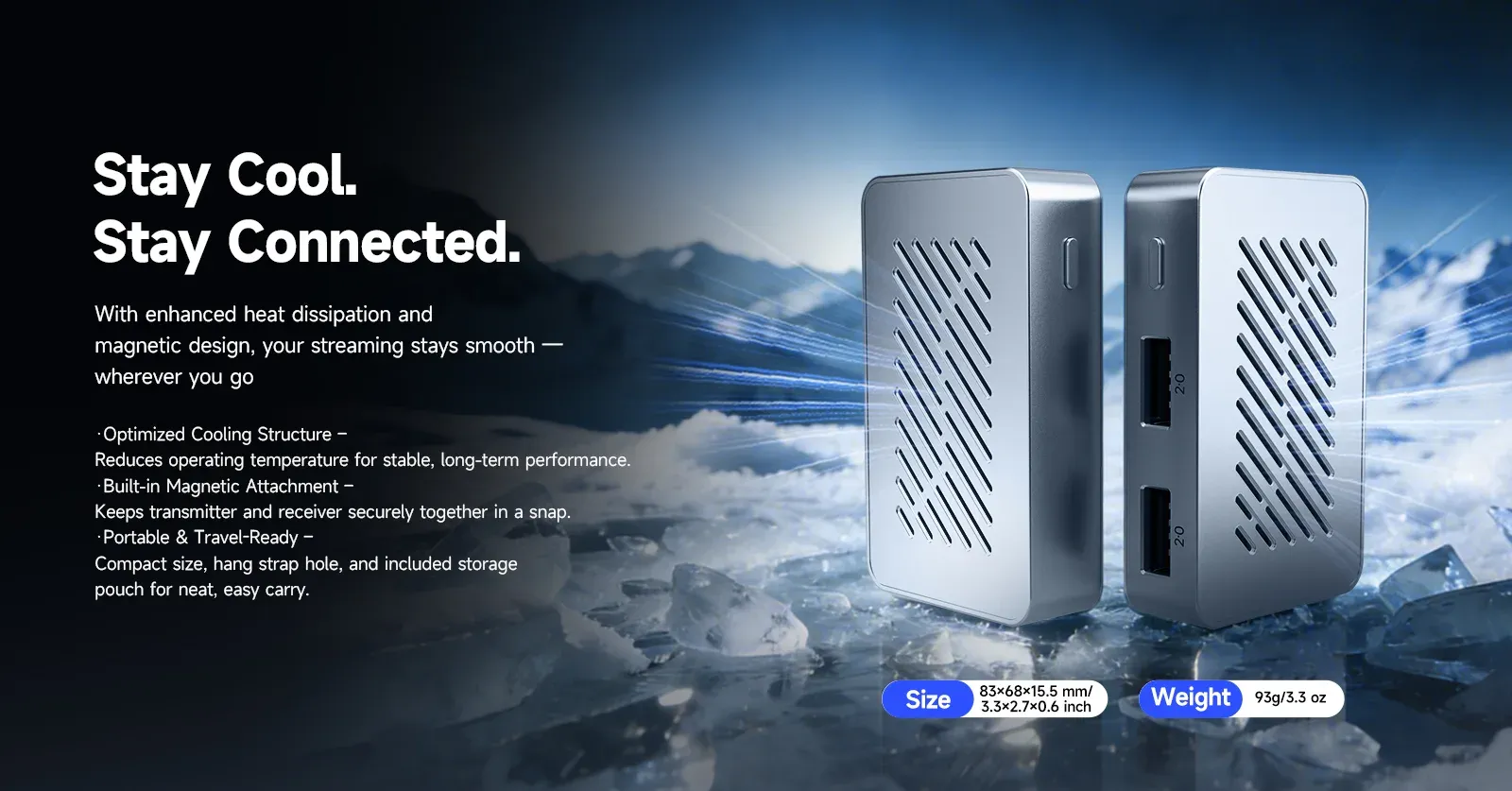
A4: The USB port supports USB 2.0, compatible with mice, keyboards, and U disks.Max data transfer speed is 480 Mbps. For details, refer to standard specifications.
Q5: What is the Type-C port spec? Why can it charge my phone? Does it have a battery?
A5: No built-in battery.It acts as a power bridge when powered externally.Total output ≤10W for phone + transmitter.Some laptops don’t support low-power Type-C.
Q6: What is the code after double-clicking the receiver button?
A6: It is for backend setup only.All functions are pre-configured.Do not modify or mention it in user materials.





 Google
 Amazon